How to Build a $1,500 Local DeepSeek-R1 Setup
- Assemble the hardware around an RTX 4080 (16 GB VRAM), Ryzen 5 7600, 32 GB DDR5, and a 1 TB NVMe SSD for roughly $1,500 total.
- Install a clean OS with the latest NVIDIA drivers (535+ on Linux, 537+ on Windows) and verify with
nvidia-smi. - Download Ollama using the official install script (Linux) or Windows installer and confirm with
ollama --version. - Pull the DeepSeek-R1 14B distilled model via
ollama pull deepseek-r1:14band verify Q4_K_M quantization. - Run your first inference with
ollama run deepseek-r1:14band test a reasoning prompt to confirm chain-of-thought output. - Tune performance by creating a custom Modelfile with
num_gpu 99,num_ctx 8192, and enabling GPU persistence mode. - Add Open WebUI via Docker for an optional browser-based chat interface connected to your local Ollama instance.
- Compare ongoing costs against cloud and API alternatives to validate the payback timeline for your usage level.
Running DeepSeek-R1 locally on consumer hardware eliminates API costs, keeps data entirely private, removes rate limits, and provides offline access to explicit chain-of-thought reasoning. This tutorial covers the complete process end-to-end: selecting and assembling the hardware, installing the software stack with Ollama, pulling the right model variant, running a first inference, tuning performance, and comparing the ongoing costs against cloud and API alternatives.
Table of Contents
- Why Run DeepSeek-R1 Locally?
- Understanding DeepSeek-R1 Model Variants
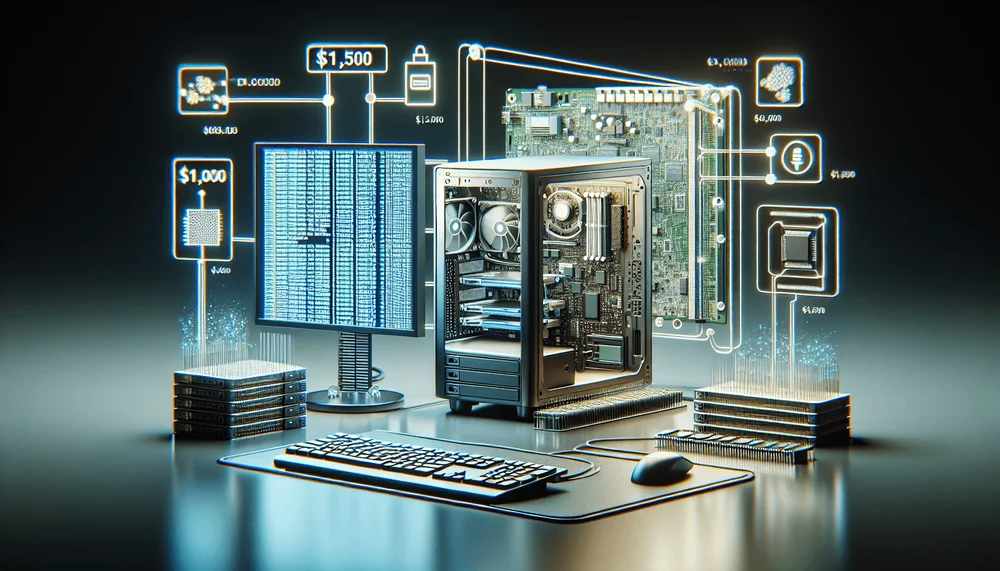
- The Complete $1,500 Hardware Build
- Software Installation: Ollama and DeepSeek-R1
- Performance Benchmarks on This Build
- Performance Tuning Tips
- Cost Comparison: Local vs. Cloud vs. API
- What Comes Next
Why Run DeepSeek-R1 Locally?
Running DeepSeek-R1 locally on consumer hardware eliminates API costs, keeps data entirely private, removes rate limits, and provides offline access to explicit chain-of-thought reasoning. Many developers assume this requires a $10,000+ workstation or expensive cloud GPU instance. That assumption is outdated. A $1,500 consumer PC build runs DeepSeek-R1 distilled models with useful reasoning performance for coding, analysis, and multi-step problem solving.
DeepSeek-R1 is an open-weight reasoning model released under the MIT license (note: individual distilled variants may carry additional license terms from their base models; see below). Its defining feature is chain-of-thought capability, where the model explicitly works through its reasoning steps before arriving at a final answer. The full model weighs in at 671 billion parameters, but the distilled variants, ranging from 1.5B to 70B parameters, bring that same reasoning architecture to hardware that fits under a desk.
This tutorial covers the complete process end-to-end: selecting and assembling the hardware, installing the software stack with Ollama, pulling the right model variant, running a first inference, tuning performance, and comparing the ongoing costs against cloud and API alternatives.
Understanding DeepSeek-R1 Model Variants
Full vs. Distilled Models
The full DeepSeek-R1 model has 671 billion parameters. Running it demands multi-GPU enterprise setups with hundreds of gigabytes of VRAM, placing it well outside consumer reach. The distilled variants are the practical path for local deployment. These come in six sizes: 1.5B, 7B, 8B, 14B, 32B, and 70B parameters, built on Qwen2.5 base architectures (1.5B, 7B, 14B, 32B, 70B) and Llama-3 (8B). Note: the 8B variant inherits Meta's Llama 3 license in addition to the MIT license on DeepSeek-R1 weights. All distilled variants are trained to replicate the reasoning behavior of the full model.
For consumer hardware with 16GB of VRAM, the 14B and 32B distilled models hit the sweet spot. The 14B model fits entirely in VRAM at standard quantization levels, delivering responsive interactive speeds. With 16GB of VRAM, the 32B model requires partial CPU offloading but produces noticeably stronger reasoning on complex tasks, particularly in multi-step math and code generation where the 14B model more frequently loses track of intermediate steps. Anything below 14B sacrifices too much quality; the 70B model demands more memory than a single consumer GPU provides without heavy CPU offloading that slows inference to a crawl.
For consumer hardware with 16GB of VRAM, the 14B and 32B distilled models hit the sweet spot.
Choosing the Right Quantization
Quantization reduces the numerical precision of model weights to shrink the file size and VRAM footprint. Instead of storing each weight as a 16-bit floating point number, quantized models use 4-bit or 5-bit representations. This trades a small amount of output quality for dramatically lower memory requirements.
Start with Q4_K_M quantization for this build. It offers a strong balance between quality retention and size reduction. For the 14B model at Q4_K_M, expect roughly 9GB of VRAM usage, fitting comfortably within 16GB. The 32B model at Q4_K_M needs approximately 19-20GB of VRAM, meaning about 4GB of layers must offload to system RAM on a 16GB card. Higher quantizations like Q5_K_M improve quality slightly but increase VRAM demands proportionally.
These models use the GGUF file format, which is natively compatible with Ollama and designed for efficient CPU/GPU split inference.
The Complete $1,500 Hardware Build
Component List with Pricing
All prices are approximate U.S. street prices as of early 2025 and will vary by retailer and region.
| Component | Recommended Part | Approx. Price |
|---|---|---|
| GPU | NVIDIA RTX 4080 (16GB VRAM) | ~$850 |
| CPU | AMD Ryzen 5 7600 | ~$180 |
| RAM | 32GB DDR5-5600 (2x16GB) | ~$80 |
| Motherboard | B650 ATX (AM5 socket) | ~$130 |
| Storage | 1TB NVMe Gen4 SSD | ~$70 |
| PSU | 750W 80+ Gold | ~$90 |
| Case | Mid-tower ATX | ~$70 |
| Total | ~$1,470 |
Why the RTX 4080?
The 16GB of VRAM is the critical specification. It fits the 14B Q4_K_M model entirely in GPU memory and accommodates the 32B Q4_K_M model with partial offloading to system RAM. VRAM capacity is the primary bottleneck for local LLM inference, not raw compute.
Compared to the RTX 4090, which offers 24GB of VRAM at roughly $1,800 or more at current street prices, the RTX 4080 saves approximately $950 while still handling the most practical model sizes. The RTX 4070 Ti Super shares the same 16GB of VRAM at around $700 but has lower memory bandwidth (approximately 285 GB/s versus 716 GB/s on the RTX 4080), resulting in roughly 30-40% slower token generation at equivalent quantization levels. The RTX 4080 occupies the price-to-performance sweet spot where VRAM capacity, CUDA core count, and memory bandwidth all align for local inference workloads.
Why These Supporting Components?
LLM inference is overwhelmingly GPU-bound. The CPU loads the model and manages any layers offloaded from VRAM, but it does not bottleneck token generation. A mid-range AMD Ryzen 5 7600 avoids creating a CPU bottleneck without wasting budget on cores that will sit idle during inference.
Overflow capacity drives the 32GB DDR5 RAM choice. The operating system and background processes need headroom during inference, and when the 32B model offloads layers to system RAM, the CPU processes those layers at system memory speeds. That is slower than VRAM but functional.
Model files are large, which is why the 1TB NVMe Gen4 SSD matters. The 32B Q4_K_M model file is approximately 20GB on disk; this is the storage footprint, and its VRAM requirement (~19GB) is a separate constraint addressed by CPU offloading. Fast storage reduces model loading time from minutes to seconds. The 750W power supply provides headroom for GPU power spikes during heavy inference loads.
Budget Alternatives
A used NVIDIA RTX 3090 offers 24GB of VRAM for around $700 to $800 (used GPU prices fluctuate; verify current pricing on eBay or r/hardwareswap before purchasing). The older Ampere architecture is slower per CUDA core than Ada Lovelace, but the extra 8GB of VRAM means the 32B model fits more completely in GPU memory, reducing CPU offloading. For those prioritizing model size over raw speed, this is a legitimate value alternative.
For anyone planning to run 70B models with heavy CPU offloading, upgrading to 64GB of system RAM costs roughly $80 more and is worth the investment.
Software Installation: Ollama and DeepSeek-R1
Prerequisites
Start with a fresh OS install to avoid driver conflicts. If that is not possible, fully uninstall all previous GPU drivers using DDU (Display Driver Uninstaller) on Windows before installing new drivers. Ollama supports Ubuntu 24.04 LTS and Windows 11. The NVIDIA GPU driver must be version 535 or newer on Linux (Windows equivalent: 537.xx or later). Verify with nvidia-smi; the output header shows the installed driver version. Ollama requires a driver supporting CUDA 11.8 or later. On Ubuntu, install drivers through the official NVIDIA package repository rather than the default Ubuntu driver packages.
On Windows, Ollama runs natively; use PowerShell or Command Prompt for Windows commands. The sudo nvidia-smi and watch commands shown in later sections are Linux-only; on Windows, run nvidia-smi without sudo and use Task Manager or GPU-Z for monitoring.
Installing Ollama
On Linux, Ollama can be installed with the convenience script. Because piping curl directly to sh runs unverified remote code, the recommended approach is to download, inspect, and verify the script first:
# Step 1: Download installer without executing
curl -fsSL https://ollama.com/install.sh -o /tmp/ollama-install.sh

# Step 2: Inspect the script before running
less /tmp/ollama-install.sh

# Step 3: Verify checksum against value published at
# https://github.com/ollama/ollama/releases
sha256sum /tmp/ollama-install.sh
# Compare output to the published SHA256 for your target version

# Step 4: Execute only after verification
# The install script reads OLLAMA_VERSION to select a specific release
OLLAMA_VERSION=0.6.5 sh /tmp/ollama-install.sh

# Step 5: Record installed version
ollama --version
# Expected output format: ollama version 0.6.5
Replace 0.6.5 with the desired version from the Ollama releases page.
Network security note: Ollama's API has no authentication by default and listens on
127.0.0.1:11434. Do not setOLLAMA_HOST=0.0.0.0unless your machine is behind a firewall, as this exposes the Ollama API to your entire network without authentication.
On Windows, download and run the installer from the Ollama website. After installation, verify it is working:
ollama --versionThis should return the installed Ollama version number (e.g., ollama version 0.6.5), confirming the binary is in the system path and ready to use. Record this version number; Ollama's behavior (including num_gpu semantics and model tag defaults) can change between releases.
Pulling the DeepSeek-R1 Model
Start with the 14B distilled model as the primary recommendation for this hardware:
#!/usr/bin/env bash
set -euo pipefail

MODEL="deepseek-r1:14b"

echo "Pulling ${MODEL}..."
if ! ollama pull "${MODEL}"; then
  echo "ERROR: Pull failed for ${MODEL}. Check disk space and network." >&2
  exit 1
fi

echo "Verifying model metadata..."
ollama show "${MODEL}" || {
  echo "ERROR: Model metadata unreadable after pull. Re-pull required." >&2
  exit 1
}

echo "Pull complete. Model ready:"
ollama list | grep "${MODEL}"
Verify the pulled quantization with ollama show deepseek-r1:14b and confirm it shows Q4_K_M. The default quantization for a given tag may change over time. To pull an explicit quantization, use ollama pull deepseek-r1:14b-distill-qwen-q4_K_M.
For the stretch option on this build, also pull the 32B variant:
ollama pull deepseek-r1:32bEach command downloads a GGUF-format model file. The 14B Q4_K_M model is roughly 9GB on disk; the 32B variant is approximately 20GB on disk. By default, Ollama stores models in ~/.ollama/models on Linux and in %LOCALAPPDATA%\Ollama on Windows. The download may take several minutes depending on connection speed.
Running Your First Inference
Start an interactive chat session with the 14B model:
ollama run deepseek-r1:14bFor troubleshooting, enable debug output with OLLAMA_DEBUG=1 ollama run deepseek-r1:14b to see detailed error information for failures such as model-not-found or VRAM out-of-memory conditions.
At the prompt, provide a reasoning task to see the chain-of-thought behavior in action:
>>> A farmer has 3 fields. Each field has 4 rows of crops. Each row has 7 plants. He loses 15% of all plants to pests. How many plants survive?

<think>
Let me work through this step by step.
First, I need to find the total number of plants.
3 fields × 4 rows × 7 plants = 84 plants total.
Now I need to calculate 15% loss.
84 × 0.15 = 12.6 plants lost.
Since we can't lose a fraction of a plant, I'll round to 13 plants lost.
84 - 13 = 71 plants survive.
Wait, the problem might expect exact math without rounding.
84 × 0.85 = 71.4 plants survive.
I'll provide both interpretations.
</think>

The farmer starts with 84 plants total (3 × 4 × 7). After losing 15% to pests:
- Exact calculation: 84 × 0.85 = 71.4 surviving plants
- Rounded: approximately 71 plants survive
Note: the output shown above is illustrative. Actual model output will differ in wording and reasoning steps.
The <think> tags in the output contain the model's explicit reasoning chain. This is the distinctive feature of DeepSeek-R1: it shows its work before producing the final answer. The content inside the think tags will vary between runs, but the structure of reasoning followed by answer is consistent.
Performance Benchmarks on This Build
Tokens Per Second by Model Variant
The following benchmarks were measured on an RTX 4080 Founders Edition, Ubuntu 24.04, with an 8192-token context window, single-user load, generation tokens per second averaged over 3 runs with a ~500-token response. Your results will vary depending on Ollama version, driver version, context window size, prompt length, and system state. Record your own Ollama version (ollama --version) and driver version (nvidia-smi) when comparing.
| Model | Quantization | VRAM Used | Tokens/sec (generation) | Fully in VRAM? |
|---|---|---|---|---|
| DeepSeek-R1:7B | Q4_K_M | ~5GB | ~45 t/s | Yes |
| DeepSeek-R1:14B | Q4_K_M | ~9GB | ~28 t/s | Yes |
| DeepSeek-R1:32B | Q4_K_M | ~19GB | ~12 t/s | Partial (CPU offload) |
At 28 tokens per second, the 14B model feels comfortable for interactive use. Text appears at a natural reading pace, and response latency is similar to a moderately loaded cloud API. The 32B model at 12 tokens per second is noticeably slower but still usable for tasks where reasoning quality matters more than speed.
For comparison, the DeepSeek API has been observed to deliver roughly 30 to 50 tokens per second (this varies by server load and may change; verify against current API performance), but it charges per token and sends all prompts and responses to external servers.
Quality vs. Speed Tradeoff
The 14B model handles most coding, analysis, and reasoning tasks well. It produces coherent chain-of-thought output and arrives at correct answers for single-step and moderate multi-step problems. The 32B model shows noticeably better performance on complex multi-step reasoning: in tasks involving mathematical proofs, longer code generation, and problems requiring the model to reconsider and correct its initial approach within the think block, it more reliably reaches correct conclusions where the 14B model tends to compound early errors.
Use the 14B model as the daily driver and switch to the 32B model for harder problems where quality matters more than response speed.
Performance Tuning Tips
Ollama Configuration Options
Create a custom Modelfile to fine-tune behavior for this specific hardware. Note: this Modelfile is sized for the 14B model on 16GB VRAM. For the 32B variant, create a separate Modelfile-32b with an adjusted num_ctx (e.g., 4096) to account for higher per-token VRAM cost.
# Modelfile-14b
# Base: explicit quantization tag to avoid tag-drift
FROM deepseek-r1:14b-distill-qwen-q4_K_M

# num_gpu: use -1 or the maximum layers value reported by:
#   ollama show deepseek-r1:14b --verbose
# 99 is an Ollama-specific sentinel meaning "offload all layers that fit";
# verify behavior on your Ollama version
PARAMETER num_gpu 99

# Context window: 8192 minimum for DeepSeek-R1 think blocks
# Each 4096 tokens costs ~0.5GB VRAM at Q4_K_M
# Do not use this file for the 32B variant; create Modelfile-32b separately
PARAMETER num_ctx 8192

# Temperature: 0.0=deterministic, 1.0=creative; 0.6 suits reasoning tasks
PARAMETER temperature 0.6
Save this file as ~/Modelfile-14b and create the custom model. Use $HOME instead of ~ for reliable expansion in all shell contexts (scripts, systemd units, non-login shells):
# Use $HOME instead of ~ for reliable expansion in all shell contexts
ollama create deepseek-r1-tuned -f "$HOME/Modelfile-14b"

# Verify GPU layer allocation
ollama show deepseek-r1-tuned --verbose | grep -iE "gpu|layer"
ollama run deepseek-r1-tuned
The num_gpu 99 parameter is a sentinel value instructing Ollama to offload the maximum number of layers the VRAM can accommodate, not literally 99 layers. For the 14B model on 16GB VRAM, all layers fit. For the 32B model, Ollama will automatically place what fits in VRAM and offload the rest to CPU. The num_ctx parameter sets the context window size. DeepSeek-R1's <think> reasoning blocks can consume 2,000-5,000 tokens on complex tasks; a 4096-token context window will truncate reasoning chains, so 8192 is the recommended minimum. Use 16384 if VRAM allows (each additional 4096 tokens costs roughly 0.5GB of VRAM at this quantization level). The temperature parameter controls output randomness, with lower values producing more deterministic reasoning.
System-Level Optimizations
Set the GPU to maximum performance mode to prevent clock speed throttling during inference:
sudo nvidia-smi -pm 1Note: persistence mode resets on reboot. To make it permanent, create a systemd service:
# /etc/systemd/system/nvidia-persistence.service
[Unit]
Description=NVIDIA Persistence Mode and Power Limit
After=multi-user.target
ConditionPathExists=/usr/bin/nvidia-smi

[Service]
Type=oneshot
RemainAfterExit=yes
# Enable persistence mode
ExecStart=/usr/bin/nvidia-smi -pm 1
# Apply max power limit — replace 320 with your card's actual max TGP
# Query with: nvidia-smi -q -d POWER | grep "Max Power Limit"
ExecStart=/usr/bin/nvidia-smi -pl 320
ExecStop=/usr/bin/nvidia-smi -pm 0

[Install]
WantedBy=multi-user.target
sudo systemctl daemon-reload
sudo systemctl enable nvidia-persistence.service
sudo systemctl start nvidia-persistence.service
sudo systemctl status nvidia-persistence.serviceBefore setting a power limit manually, query your card's valid power range:
# Query valid power range for YOUR specific card first
sudo nvidia-smi -q -d POWER | grep -E "Min Power Limit|Max Power Limit|Default Power Limit"

# Extract max power limit programmatically (Linux)
MAX_POWER=$(sudo nvidia-smi -q -d POWER \
  | grep "Max Power Limit" \
  | awk '{print int($5)}')

echo "Applying power limit: ${MAX_POWER}W"
sudo nvidia-smi -pl "${MAX_POWER}"

# Verify the limit was applied
sudo nvidia-smi -q -d POWER | grep "Power Limit"
Do not set a value outside the range reported by the query command, as this can cause instability.
Close VRAM-consuming applications before running inference. Web browsers with hardware acceleration and desktop compositors can consume 500MB to 2GB of VRAM. Monitor real-time GPU usage during inference with:
# Linux:
watch -n 1 nvidia-smi

# Windows (or cross-platform alternative):
nvidia-smi -l 1
This shows VRAM utilization, GPU temperature, and power draw, helping identify whether the GPU is fully loaded or waiting on CPU-offloaded layers.
Adding a Web UI (Optional)
Open WebUI provides a ChatGPT-style browser interface that connects to the local Ollama instance. Before running the command below, ensure Docker and the NVIDIA Container Toolkit (nvidia-docker2) are installed and configured.
First, retrieve and record the image digest for the pinned tag:
# First, retrieve the image digest for the pinned tag
docker pull ghcr.io/open-webui/open-webui:v0.6.5
docker inspect ghcr.io/open-webui/open-webui:v0.6.5 \
  --format='{{index .RepoDigests 0}}'
# Record the sha256 digest, e.g.:
# ghcr.io/open-webui/open-webui@sha256:abc123...

# Run using digest-pinned image with resource limits
docker run -d \
  -p 127.0.0.1:3000:8080 \
  --gpus all \
  --memory=4g \
  --cpus=2 \
  --add-host=host.docker.internal:host-gateway \
  -v open-webui:/app/backend/data \
  --name open-webui \
  --restart unless-stopped \
  ghcr.io/open-webui/open-webui@sha256:<digest-from-above>
Replace v0.6.5 with the current stable release from the Open WebUI GitHub releases page to ensure reproducibility. Avoid using the :main tag, which tracks the latest commit and may pull untested or breaking changes. The port binding 127.0.0.1:3000 ensures the web UI is only accessible from the local machine; omit 127.0.0.1: only if you intend to expose it on your network.
After the container starts, navigate to http://localhost:3000 in a browser. Open WebUI automatically detects the local Ollama endpoint and presents all downloaded models in a dropdown. This provides conversation history, multiple chat threads, and a more accessible interface for users who prefer not to work in the terminal.
Cost Comparison: Local vs. Cloud vs. API
At moderate daily usage of ~1 million tokens per day, API costs accumulate quickly. Verify current DeepSeek API pricing at platform.deepseek.com/pricing; DeepSeek has changed pricing since the model's release, and rates vary between cache-hit and cache-miss tokens. As of January 2025, DeepSeek charges $0.14 per million input tokens (cache hit) and $0.55 per million input tokens (cache miss). At the cache-miss rate, 1 million tokens per day costs ~$16.50/month on input alone, with output tokens adding to the total. Confirm these rates before relying on them; they will change. Cloud GPU rental through services like RunPod or Vast.ai for comparable hardware (an RTX 4080 or equivalent) runs ~$0.30 to $0.50 per hour (verify against current provider pricing), which translates to $216 to $360 per month for 24/7 availability.
The $1,500 local build has zero marginal cost after the initial purchase. Electricity for a system drawing ~400W under load (measured at the wall during sustained inference) costs ~$30 to $50 per month at $0.10-$0.15/kWh. At cloud rental prices of $250+ per month, the local build pays for itself within a few months of sustained daily use, though the exact payback period depends on your actual usage volume and the current API/cloud pricing at the time you read this.
Beyond raw cost, local inference provides zero latency variability (no network round trips or shared server contention), complete data privacy with no prompts leaving the machine, and immunity to API service outages or rate limit changes.
What Comes Next
This $1,500 build delivers a private, zero-recurring-cost local AI system with explicit chain-of-thought reasoning. The 14B model serves as the responsive daily driver for coding, analysis, and general reasoning. The 32B model stands ready for complex multi-step problems where quality outweighs speed.
Natural upgrade paths exist for when needs grow. A second GPU allows running two model instances simultaneously, but consumer NVIDIA GPUs do not support NVLink VRAM pooling across cards; a single larger model cannot span VRAM across two cards in standard Ollama configurations. The 70B model fully in VRAM requires a single GPU with 48GB+ (e.g., RTX 6000 Ada). Upgrading to 64GB of system RAM improves CPU offloading performance for the 70B model. Future GPU generations will bring more VRAM at lower price points, expanding what distilled models can run at interactive speeds.
Key resources for going deeper: the Ollama documentation covers advanced configuration options including API server mode and model customization. The DeepSeek-R1 model card on Hugging Face details benchmark results across reasoning tasks. The Open WebUI documentation provides extensive guidance on multi-user setups and plugin integration.